

始める前に
- ラボでは、Google Cloud プロジェクトとリソースを一定の時間利用します
- ラボには時間制限があり、一時停止機能はありません。ラボを終了した場合は、最初からやり直す必要があります。
- 画面左上の [ラボを開始] をクリックして開始します


The end-of-course project centers on comprehending project data requirements. In the Previous courses, you created a project proposal listing milestones that advance with each end-of-course project.
In this module you will see:
TikTok mission is to inspire creativity and spread happiness. Our staff fosters curiosity and operates in sync with cultural trends. With the combination of our organization's streamlined framework, you'll encounter vibrant chances to genuinely influence a swiftly expanding enterprise and advance your career.
You'll need to start the lab before you can access the materials. To do this, click the green “Start Lab” button at the top of the screen.
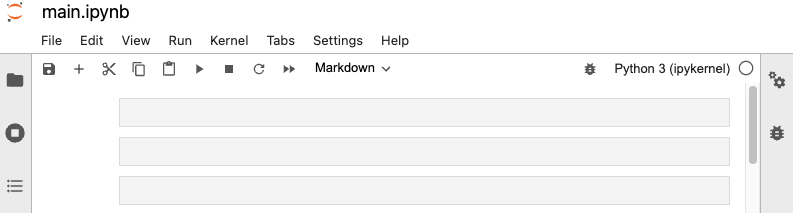
After you click the “Start Lab” button, you will see a Jupyter Notebook, where you will be performing further steps in the lab. You should have a jupyter notebook that looks like this:
You'll perform the following objective into this lab:
To complete this lab, you will open a Jupyter Notebook and follow instructions to enter code and written responses where prompted. The Jupyter notebook will autosave as you work, or you can manually save it by clicking the Save and Checkpoint button or by selecting Save and Checkpoint from the File menu.
As you complete the lab, note the following features:
In this task, you'll analyze and prep data for EDA. You'll create informative data visualizations to support business decision-making.
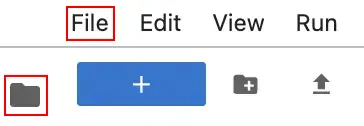
Click the files icon to access Jupyter notebook file.
Open the main.ipynb file, by clicking on the file name.
Explore the completed exemplar of the lab. Compare the code and text responses in the exemplar to your completed lab.
Before you end the lab, make sure you’re satisfied that you’ve completed all the tasks, and follow these steps:



このコンテンツは現在ご利用いただけません
利用可能になりましたら、メールでお知らせいたします

ありがとうございます。
利用可能になりましたら、メールでご連絡いたします


1 回に 1 つのラボ
既存のラボをすべて終了して、このラボを開始することを確認してください