Exemplar: Course 3 TikTok project lab
Atelier
20 minutes
universal_currency_alt
Sans frais
show_chart
Débutant
info
Cet atelier peut intégrer des outils d'IA pour vous accompagner dans votre apprentissage.

Ce contenu n'est pas encore optimisé pour les appareils mobiles.
Pour une expérience optimale, veuillez accéder à notre site sur un ordinateur de bureau en utilisant un lien envoyé par e-mail.
Introduction
The end-of-course project centers on comprehending project data requirements. In the Previous courses, you created a project proposal listing milestones that advance with each end-of-course project.
In this module you will see:
TikTok mission is to inspire creativity and spread happiness. Our staff fosters curiosity and operates in sync with cultural trends. With the combination of our organization's streamlined framework, you'll encounter vibrant chances to genuinely influence a swiftly expanding enterprise and advance your career.
Disclaimer: For optimal performance and compatibility, it is recommended to use either Google Chrome or Mozilla Firefox browsers while accessing the labs.
Start your lab
You'll need to start the lab before you can access the materials. To do this, click the green “Start Lab” button at the top of the screen.
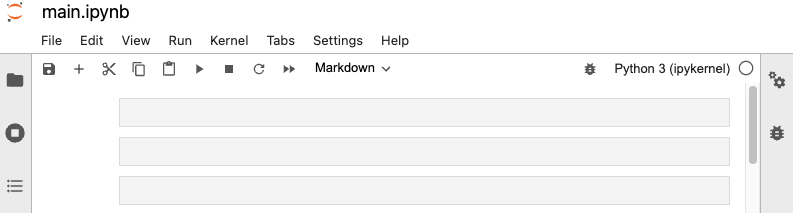
After you click the “Start Lab” button, you will see a Jupyter Notebook, where you will be performing further steps in the lab. You should have a jupyter notebook that looks like this:
What you'll do
You'll perform the following objective into this lab:
- Understand how to implement user authentication and authorization for a Python application that interacts with TikTok.
- You will learn how to build a simple TikTok bot or automation tool using Python.
- You will learn techniques for testing and debugging Python code, especially when working with APIs. This includes handling errors, troubleshooting, and ensuring the reliability of the code.
Accessing the notebooks within the Jupyter Notebook
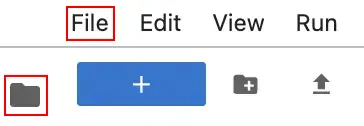
To complete this lab, you will open a Jupyter Notebook and follow instructions to enter code and written responses where prompted. The Jupyter notebook will autosave as you work, or you can manually save it by clicking the Save and Checkpoint button or by selecting Save and Checkpoint from the File menu.
Tips
As you complete the lab, note the following features:
-
Sections: Step-by-step instructions in each section lead you through the lab.
-
Code blocks: Code blocks allow you to practice key Python coding concepts. Add code where prompted and then click the Run button to execute your code and view any possible output.

-
Questions: Thought questions offer moments to pause and think about concepts and your output as you move through the lab.
-
Hints: Hidden hints provide suggestions you can use to complete your work.
Task: Course 3 TikTok project lab
In this task, you'll analyze and prep data for EDA. You'll create informative data visualizations to support business decision-making.
-
Click the files icon to access Jupyter notebook file.
-
Open the main.ipynb file, by clicking on the file name.
-
Explore the completed exemplar of the lab. Compare the code and text responses in the exemplar to your completed lab.
End your lab
Before you end the lab, make sure you’re satisfied that you’ve completed all the tasks, and follow these steps:
- Click End Lab and then click Submit. Ending the lab will remove your access to the Jupyter Notebook. You won’t be able to access the work you've completed in it again.