Introduction
You will embark on a journey to explore the fundamental concepts of Advanced hypothesis testing through an Annotated Follow-Along Guide.
Hypothesis testing is a crucial concept in statistics used to make inferences about a population based on sample data. Python provides several libraries, such as SciPy and StatsModels, that offer functions and methods for hypothesis testing.
Disclaimer: For optimal performance and compatibility, it is recommended to use either Google Chrome or Mozilla Firefox browsers while accessing the labs.
Start your lab
You'll need to start the lab before you can access the materials. To do this, click the green “Start Lab” button at the top of the screen.

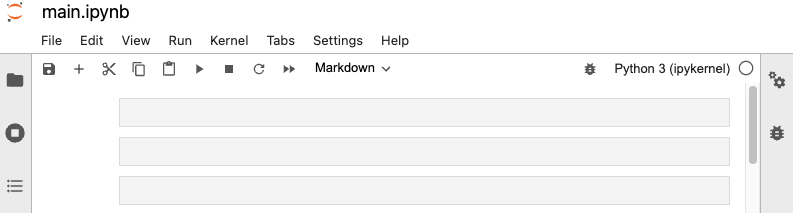
After you click the “Start Lab” button, you will see a Jupyter Notebook, where you will be performing further steps in the lab. You should have a jupyter notebook that looks like this:
What you'll do
You'll explore the following objective into this lab:
- You will explore hypothesis testing for an environmental think tank called Repair Our Air (ROA).
Accessing the notebooks within the Jupyter Notebook
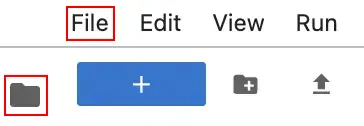
To complete this lab, you will open a Jupyter Notebook and follow instructions to enter code and written responses where prompted. The Jupyter notebook will autosave as you work, or you can manually save it by clicking the Save and Checkpoint button or by selecting Save and Checkpoint from the File menu.
Tips
As you complete the lab, note the following features:
-
Sections: Step-by-step instructions in each section lead you through the lab.
-
Code blocks: Code blocks allow you to practice key Python coding concepts. Add code where prompted and then click the Run button to execute your code and view any possible output.

-
Questions: Thought questions offer moments to pause and think about concepts and your output as you move through the lab.
-
Hints: Hidden hints provide suggestions you can use to complete your work.
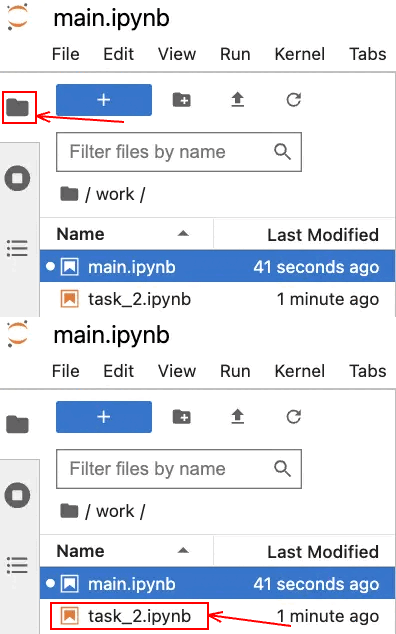
Note: The main.ipynb file will be provided at the beginning of the lab. Ensure that you use this file to complete first task. After completing the Task 1, navigate to the files icon and to choose the next task file, simply double-click on the notebook file as per mentioned tasks.
Steps to download and upload a CSV file:
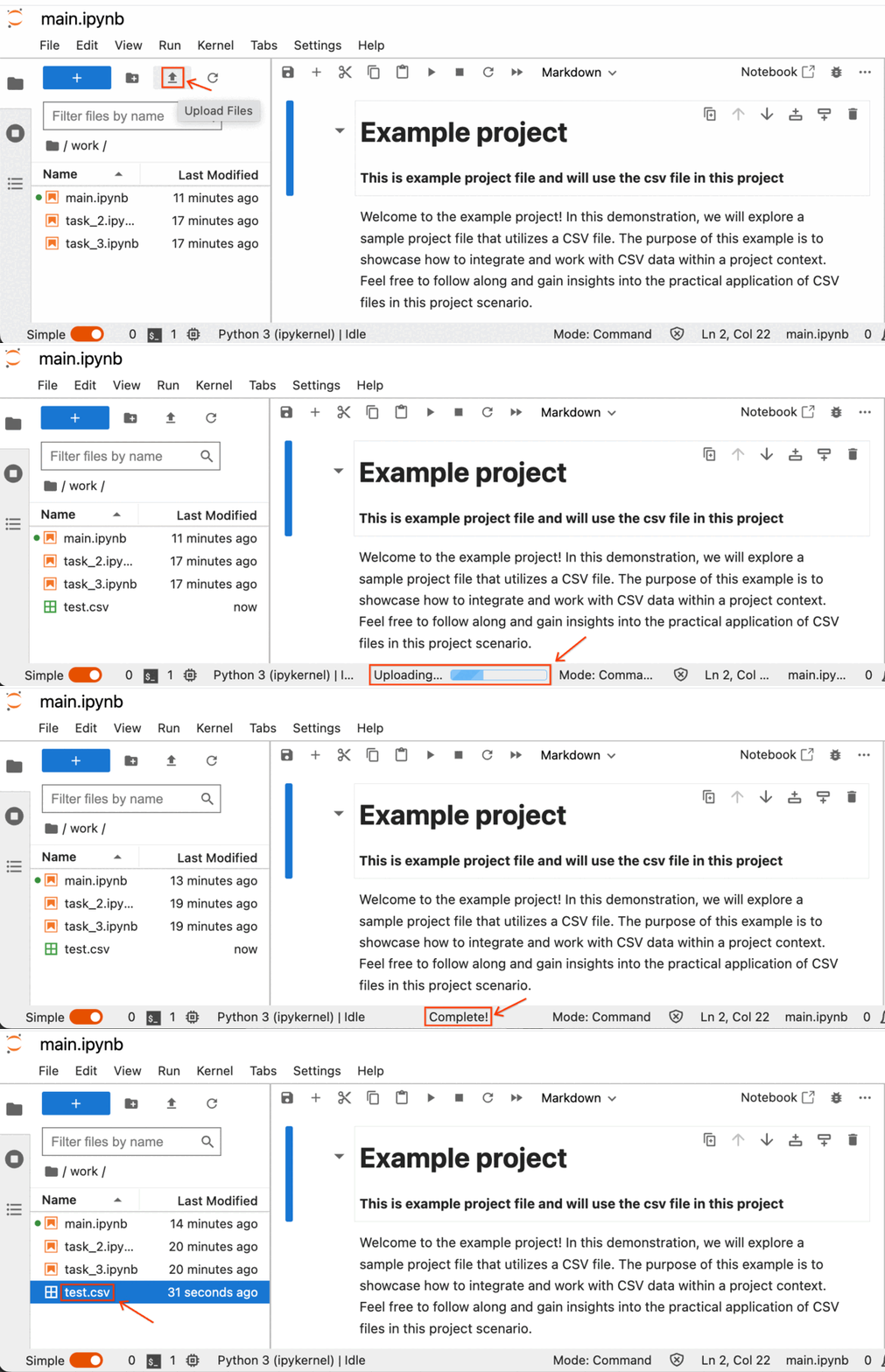
In this lab, you will perform operations on CSV data corresponding to the tasks outlined in the instructions. Retrieve the CSV file attached to the task instructions and proceed to upload it into the Jupyter Notebook using the following steps:
-
Click on the CSV file name specified in the task instructions, and the CSV file will be downloaded to your designated download directory.
-
Next, within your lab's Jupyter Notebook, simply select the Upload File button, choose the desired CSV files, and then click on Upload.
-
The process of uploading the CSV file has commenced, and you can locate the progress indicators at the bottom of the Jupyter Notebook.
Task 1: Use Python to conduct a hypothesis test
You will learn to use Python to run both a one-way and two-way ANOVA test. You'll also learn to run a post hoc test to analyze the results of a one-way ANOVA test. Before starting on this programming exercise, we strongly recommend watching the video lecture and completing the IVQ for the associated topics.
Use the following CSV data for this task:
-
Click the files icon to access Jupyter notebook file.
-
Open the main.ipynb file, by clicking on the file name.
Task 2: Explore hypothesis testing
You work for an environmental think tank called Repair Our Air (ROA). ROA is formulating policy recommendations to improve the air quality in America, using the Environmental Protection Agency's Air Quality Index (AQI) to guide their decision making. An AQI value close to 0 signals "little to no" public health concern, while higher values are associated with increased risk to public health.
-
Click the files icon to access Jupyter notebook file.
-
Open the main.ipynb file, by clicking on the file name.
-
### YOUR CODE HERE ### indicates where you should write code. Be sure to replace this with your own code before running the code cell.
End your lab
Before you end the lab, make sure you’re satisfied that you’ve completed all the tasks, and follow these steps:
- Click End Lab and then click Submit. Ending the lab will remove your access to the Jupyter Notebook. You won’t be able to access the work you've completed in it again.